
BenchVue 2017 Software’s Test Flow
Configuration Guides
Keysight Technologies
BenchVue 2017 Software’s Test Flow
Demo Guide
Create Automated Tests Using BenchVue Test Flow
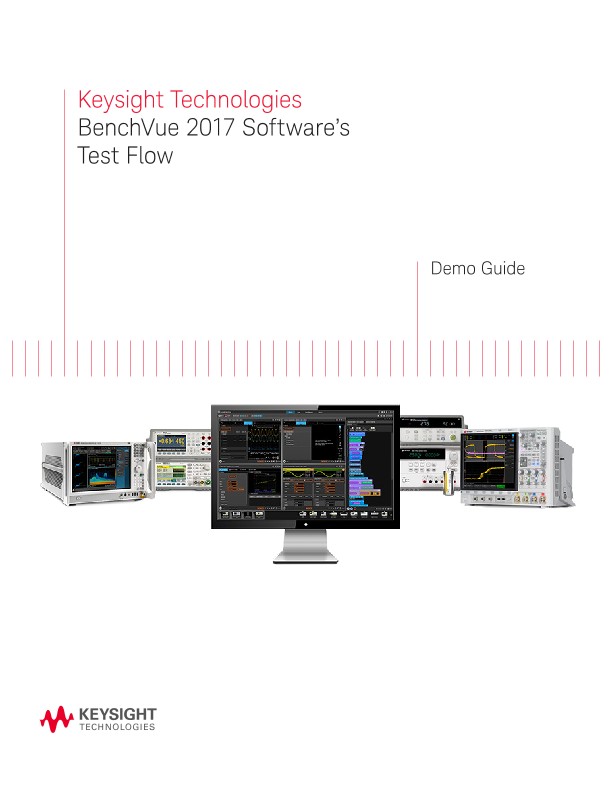
Build custom test sequences within the Keysight BenchVue software platform using Test Flow. Test Flow enhances the power of BenchVue by enabling you to quickly create and analyze automated tests – without the need for programming. Using an intuitive drag-and-drop interface, Test Flow allows you to combine multiple instruments into an automated test for better characterization of your device-under-test. Test Flow controls are integrated into most BenchVue apps and Test Flow is enabled with each licensed BenchVue control app
With BenchVue Test Flow you can:
– Create custom test sequences fast and intuitively
– Combine multiple instruments into a sequence for better DUT characterization
– Drag-and-drop controls for rapid test prototyping
– View data logs in tabular or graphical form
Interpret results more quickly by:
– Customizing your X-axis and Y-axis on graphs to view measurements
– Exporting data to popular tools such as MATLAB or Microsoft Excel and Word for documentation or further analysis
Within Test Flow, the term Sequence refers to a series of individual steps or operations that make up an automated test. Each step or operation, called a Block, corresponds to a measurement, configuration setting, or property from a launched bench application, such as a power supply or digital multimeter. Using Test Flow's drag-and-drop interface, you can easily add new blocks, move existing blocks, and also add loops and delays to the Sequence.
View sequence data in Data Manager
Each time you execute a Test Flow Sequence, the results are automatically stored in the BenchVue "Data Manager" tab. From the filtering panel on the left side of the "Data Manager" tab, select "Test Flow" to list only the results from Sequences. Double-click on a Sequence to display the contents in a separate Test Flow Viewer window (depending on the size of the data log file, it could take some time for this window to open).
Test Flow Example - Simple Frequency Response Test
To show how fast and easy it is to create a Test Flow Sequence to generate a powerful automated test, an example is included below – no programming is required.
The example shows how to use a Sequence to generate a frequency response test for a device under test. The example Sequence uses the Function Generator (FG) application and the Oscilloscope (Scope) application. The example Sequence is also available from the BenchVue "Library" tab – go to "BenchVue Test Flow Examples", then to the "Applications" folder, and then select the "Simple Frequency Response Test" sequence from the list.
The blocks for this example Sequence are shown below. Click the Start button on the bottom toolbar of the Test Flow panel to run the Sequence. The blocks are executed in order from top to bottom.
Intuitive Software for More Productivity, Faster Analysis, and Stronger Results
With Keysight BenchVue software's Test Flow, a tedious repetitive process can now be created quickly without having to write any software, and results can be exported easily for further analysis or documentation. This can dramatically reduce the time and costs of characterizing devices